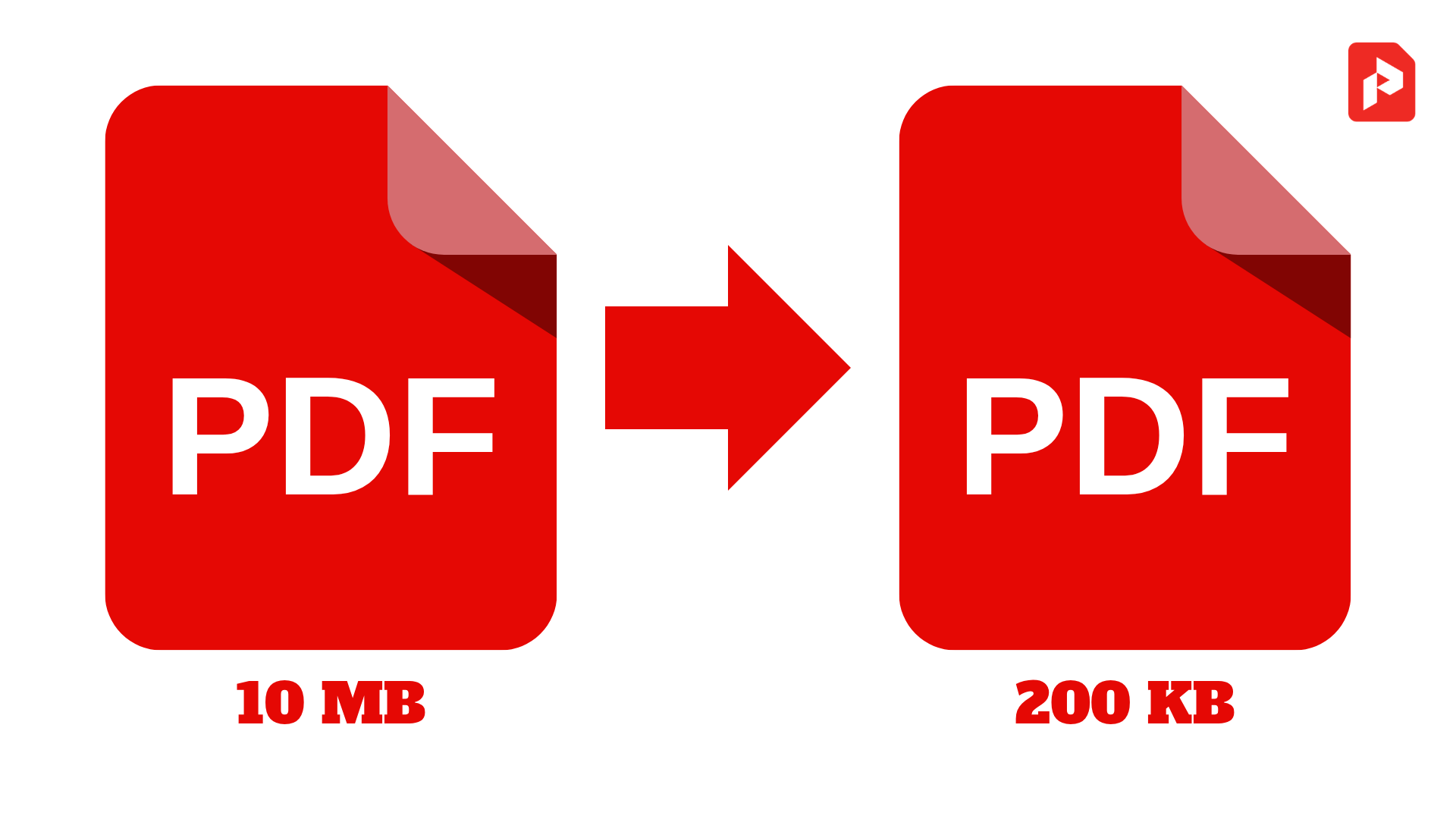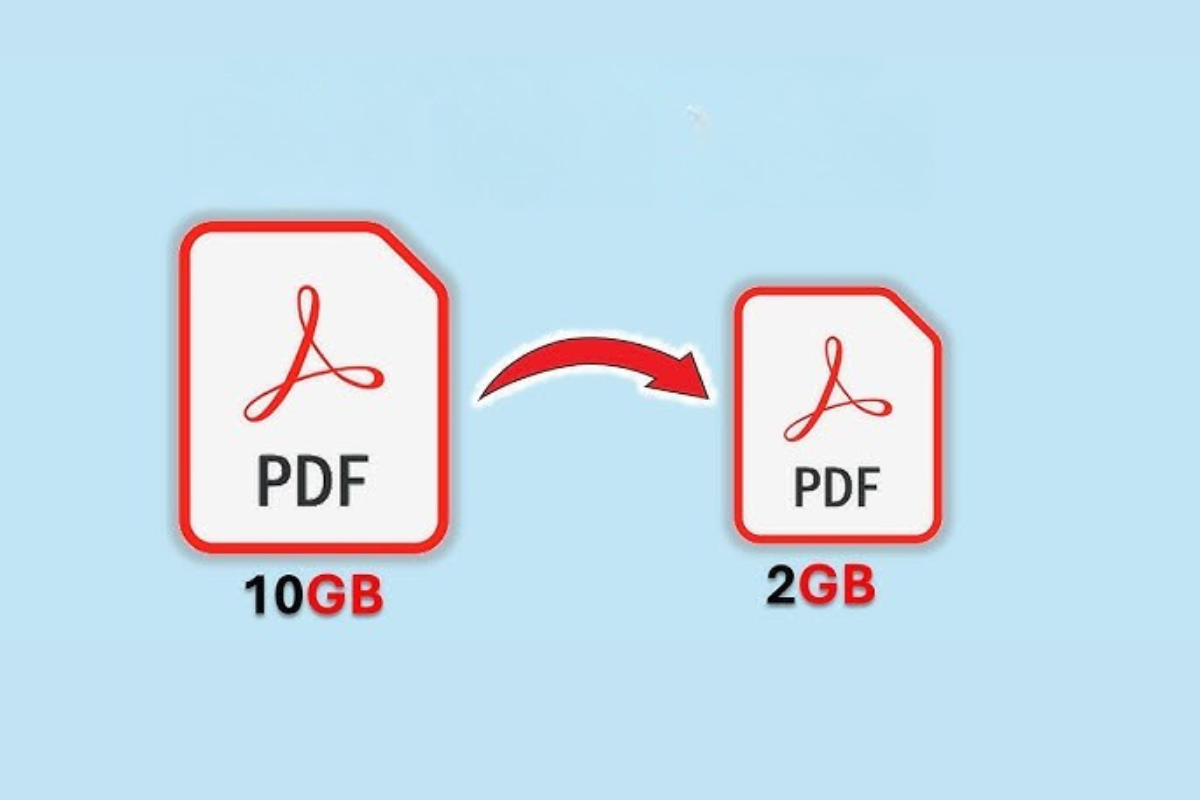
PDFs are widely used for sharing and storing documents due to their reliable formatting and compatibility across devices. However, these files can often become large, especially when they contain images, graphics, or long documents.
This can create difficulties when trying to share them over email, upload to websites, or store them efficiently. The good news is, there are ways to compress PDFs without sacrificing quality. In this guide, we’ll walk you through the steps and methods you can use to achieve this.
Why Compress PDFs?
Compressing PDFs reduces their file size, making them easier to manage, share, and store. However, it’s crucial to ensure that the compression doesn’t degrade the document’s quality, especially when dealing with images, scanned documents, or detailed reports. Here’s why PDF compression is important:
- Reduced file size for easier sharing via email or cloud storage
- Faster uploads and downloads for web applications
- Saving storage space without compromising content quality
Step-by-Step Tips to Compress PDFs Without Losing Quality
Here are several ways to compress PDFs while keeping their quality intact:
1. Use PDF Compression Tools
There are a variety of online and offline tools that can help you compress PDFs without compromising the quality. Here’s how to use them effectively:
Online PDF Compression Tools:
Online tools like Smallpdf, ILovePDF, and PDFCompressor offer simple drag-and-drop interfaces that allow you to compress your PDFs quickly. These tools often have options to adjust the compression level to ensure you can balance file size and quality.
- Go to an online PDF compressor (e.g., Smallpdf or ILovePDF).
- Upload your PDF file.
- Select the compression level. Many tools offer a “basic” compression option (fast but may reduce quality) and an “advanced” option (preserves more quality).
- Download the compressed PDF once the process is complete.
Advantages of Online Compression Tools:
- No software installation required.
- Free options for basic compression.
- Simple and quick.
Offline PDF Compression Tools:
For more control over the compression process, desktop tools like Adobe Acrobat Pro DC or PDF-XChange Editor offer advanced features that allow you to tweak compression settings.
- Open your PDF in Adobe Acrobat Pro.
- Go to File > Save As Other > Reduced Size PDF.
- Choose the compatibility level (e.g., Acrobat 10 or later for better quality retention).
- Save your file with the adjusted compression settings.
2. Optimize Images Inside the PDF
Images are often the main culprits when it comes to large PDF file sizes. By optimizing or reducing the resolution of images, you can significantly reduce the overall size of the PDF without affecting the document’s legibility or layout.
How to Optimize Images:
- Use tools to compress images before adding them to the PDF.
- Online tools like TinyPNG can reduce the size of PNG and JPEG images without losing quality.
- Adjust image resolution to 150 or 200 DPI (dots per inch) for better file size management while maintaining acceptable print quality.
- Convert high-resolution images (300 DPI or more) to lower resolutions (150-200 DPI) for web sharing or email.
In Adobe Acrobat:
- Open the PDF in Adobe Acrobat Pro DC.
- Go to Tools > Optimize PDF.
- Click on Advanced Optimization and then select Images.
- Choose options to downsample or compress images without quality loss.
3. Remove Unnecessary Elements and Metadata
Sometimes, PDFs contain extra elements or metadata that are not visible to the user but still contribute to the file size. These can be removed to reduce the overall size of the document.
Remove Metadata:
- Open your PDF in Adobe Acrobat Pro.
- Go to File > Properties, then click on the Description tab.
- Look for unnecessary metadata like author names, editing history, or embedded fonts.
- Click Clear or Remove where possible.
Remove Unused Objects:
- Delete unused elements like extra layers, bookmarks, or form fields that are not necessary for the document.
- Use “PDF Optimizer” in Adobe Acrobat to remove these objects efficiently.
4. Choose the Right Compression Settings for Fonts and Colors
PDF files often embed fonts and colors that can unnecessarily increase the file size. You can compress PDFs by optimizing fonts and color profiles.
Optimizing Fonts:
- Use subset fonts so only the characters used in the document are included in the PDF.
- In Adobe Acrobat Pro, you can access this option under Advanced Settings when saving or optimizing a PDF.
Color Compression:
- Choose RGB color instead of CMYK, which can reduce the file size by up to 50%.
- Avoid using CMYK unless it’s absolutely necessary for professional printing.
5. Leverage PDF/A Format for Archiving
PDF/A is an ISO-standardized version of PDF that is optimized for long-term archiving. It doesn’t support features like JavaScript or encryption, which are typically responsible for larger file sizes. While compressing to PDF/A might result in slightly reduced functionality, it’s excellent for archiving documents with minimal file size.
How to Convert to PDF/A:
- Open your document in Adobe Acrobat Pro.
- Go to File > Save As Other > Archivable PDF (PDF/A).
- This will create a more compact file with minimal loss of content quality.
6. Use Advanced Settings in PDF Editors
Many PDF editing programs, including Foxit PDF Editor and PDFelement, offer advanced settings for controlling the file size. These tools can let you control aspects like image quality, font embedding, and compression levels.
Steps for PDF Compression in Foxit PDF Editor:
- Open the file in Foxit PDF Editor.
- Click on File > PDF Optimizer.
- Choose Compression settings for images and text.
- Select the Image Resolution and adjust it to reduce the file size.
- Save the optimized PDF.
Compressing PDFs without losing quality is entirely achievable with the right tools and techniques. Whether you’re working with large image-heavy PDFs or text-based documents, using the methods outlined here will help you reduce file size for easier sharing, storage, and upload. By leveraging online or offline tools, optimizing images, and cleaning up unnecessary elements, you can maintain the quality and integrity of your documents without sacrificing performance.
FAQs
Can I compress a PDF without reducing its image quality?
Yes! By optimizing the images to a reasonable resolution (150-200 DPI) and using lossless compression, you can significantly reduce file size without compromising visual quality.
What is the best tool for compressing PDFs?
Popular tools like Smallpdf, Adobe Acrobat Pro, and ILovePDF offer excellent compression options. For more control, desktop tools like Foxit PDF Editor provide advanced settings.
Does compressing a PDF affect the document’s layout?
No, if done correctly, compressing PDFs should not affect the layout. However, excessive compression or low-quality settings may cause distortions or reduced clarity in images.
How do I compress scanned PDFs?
Use tools with Optical Character Recognition (OCR) to convert scanned PDFs into searchable text-based documents. This often reduces the file size and allows for better compression.