Editing PDFs can seem like a daunting task for beginners, especially if you’re used to more flexible file formats like Word or Excel. However, with the right tools and knowledge, editing PDF documents becomes much easier. Whether you’re modifying text, adding images, or reformatting your PDF, this guide will walk you through everything you need to know about PDF editing.
What is a PDF?
PDF stands for Portable Document Format. It’s a file format used to present documents, including text and images, in a manner independent of software, hardware, or operating systems. This makes PDFs ideal for sharing documents that need to retain their format across different platforms.
Why Edit PDFs?
There are various reasons you might need to edit a PDF:
- Correcting Errors: Editing typos or mistakes in scanned or finalized documents.
- Adding Comments or Annotations: Collaborating on a document with colleagues or clients.
- Updating Information: Changing details in forms, contracts, or presentations.
- Converting Documents: Making a PDF editable again after it’s been finalized or printed.
Tools for Editing PDFs
Before you start editing a PDF, it’s essential to have the right tools. There are many PDF editors available, both free and paid, that offer various features to help you make changes to your PDF documents. Here’s a breakdown of some popular tools:
| Tool Name | Type | Key Features |
|---|---|---|
| Adobe Acrobat DC | Paid (Subscription) | Complete editing suite, adding text, images, annotations, etc. |
| Foxit PDF Editor | Paid | Lightweight, fast, with collaboration tools |
| PDFelement | Paid | Affordable, user-friendly, supports OCR |
| Smallpdf | Free/Paid | Simple, easy-to-use online PDF editor |
| PDF-XChange Editor | Free/Paid | Offers advanced editing options, OCR |
| Sejda | Free/Paid | Web-based, great for merging, splitting, and converting PDFs |
| PDFBoom | Free | Web-based, Many services like Merging, Converting, Protecting PDFs, etc. |
How to Edit PDFs Using Adobe Acrobat DC
One of the most powerful tools for editing PDFs is Adobe Acrobat DC. Here’s a simple step-by-step guide on how to use it:
- Open Your PDF: Launch Adobe Acrobat and click on “Open” to choose the PDF you wish to edit.
- Edit Text: To modify text, click on “Edit PDF” on the right-hand toolbar. Select the text you want to change and start typing.
- Add Images: Click on the “Add Image” option, choose your image file, and place it where needed in the document.
- Add Comments or Annotations: Use the “Comment” tool to highlight, underline, or add sticky notes to your document.
- Save Your Changes: After making the necessary edits, click “File” and then “Save” or “Save As” to save your edited document.
Basic PDF Editing Techniques
Editing PDFs involves several basic functions that are essential for a smooth experience:
Text Editing
- Change Existing Text: Some PDF editors let you directly modify the text in a document by clicking on the text field and typing new content.
- Add New Text: You can insert new text boxes to add information wherever you want.
- Font Adjustments: Change the font style, size, and color of the text as needed.
Image Editing
- Insert Images: Most PDF editors allow you to add images to the document by selecting the image tool and placing the image at the desired location.
- Resize and Move Images: Once the image is inserted, you can resize it and move it around the document.
Annotations and Comments
- Highlight Text: Highlight sections of the document to emphasize important information.
- Add Comments: Insert text comments or sticky notes to communicate additional details or feedback.
Reordering or Splitting Pages
- Reorder Pages: Drag and drop pages within the PDF to rearrange their order.
- Split PDF: Some PDF editors let you split your PDF into smaller documents for easier management.
Advanced PDF Editing
For those who need more advanced capabilities, such as OCR (Optical Character Recognition) for scanned documents, or creating forms and interactive elements, tools like PDFelement or Adobe Acrobat Pro provide comprehensive features.
- OCR: Converts scanned images into editable and searchable text.
- Form Creation: Design fillable forms with fields, drop-down lists, and checkboxes.
- Password Protection: Protect your document with a password to prevent unauthorized access.
Converting PDFs to Other Formats
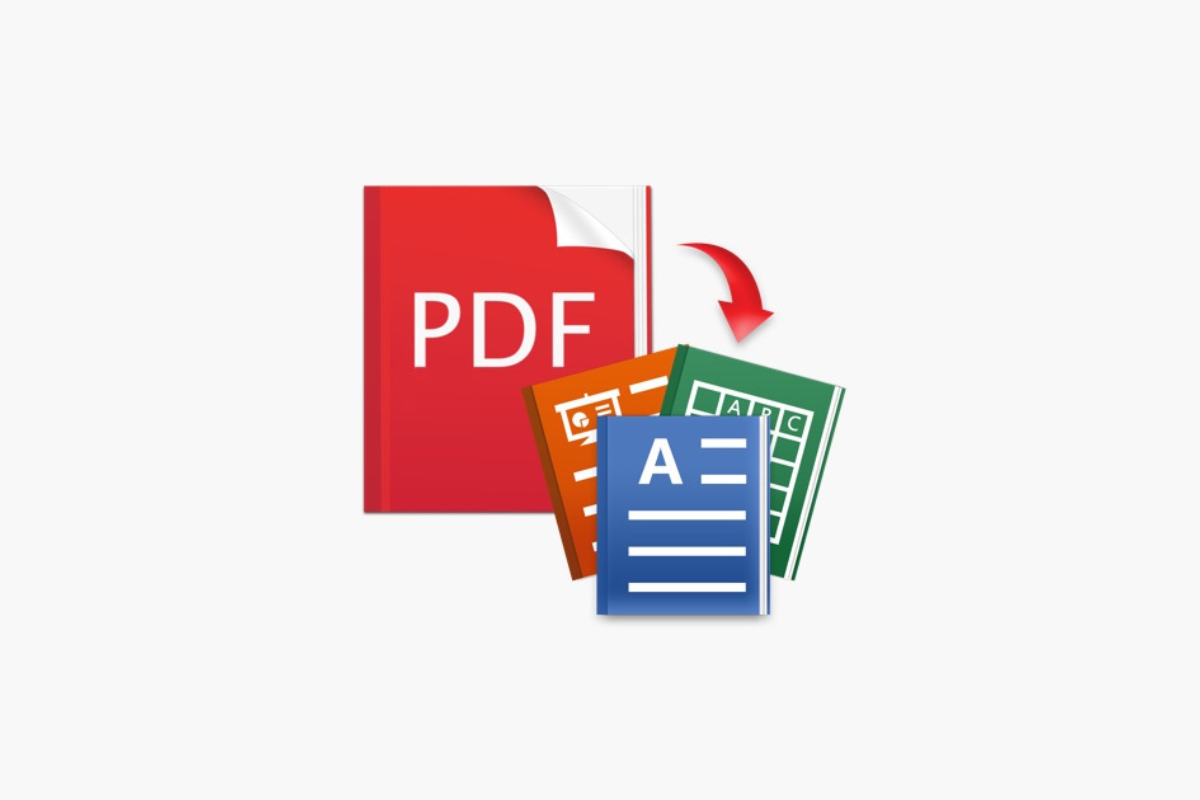
Sometimes, editing a PDF directly can be challenging. In those cases, converting the PDF into another editable format might be a better option. Here are common conversions:
- PDF to Word: This allows you to edit the document in a word processor.
- PDF to Excel: Ideal for working with data stored in a PDF.
- PDF to Image: For saving a PDF page as a picture format.
Best Practices for Editing PDFs
- Always save a copy: Make a backup of the original PDF before making any changes.
- Check for compatibility: Ensure the PDF editor you choose supports the features you need.
- Use a reliable tool: Choose a trusted PDF editing tool to avoid data corruption or loss.
Mastering PDF editing doesn’t have to be complex. With the right tools and knowledge, you can efficiently manage your PDF documents, whether you’re editing text, adding annotations, or converting to other formats.
Here are the Services Provided by PDFBOOM
PDFBoom is a browser-based, free online PDF utility platform that allows users to upload, edit, convert, compress, merge, split, rotate, protect, unlock, and perform OCR on PDF files without installing software or creating an account; it supports multiple file format conversions (such as Word, Excel, EPUB, and images like WebP to PDF and vice versa), typically accepts files up to moderate size limits (often around 50–100 MB per upload depending on the tool).
It operates over a secure HTTPS connection, offers quick processing with a simple interface, and may include usage limits or ads typical of free services.
It stores and processes files on its servers (raising privacy considerations for sensitive documents), and functions as a lightweight alternative to established tools like Adobe Acrobat Online, Smallpdf, and iLovePDF.
1. PDF Organizing Tools
PDFBoom provides a set of tools for organizing and managing your PDFs. These tools help you to rearrange, split, merge, or remove specific pages from your document.
a. Merge PDF
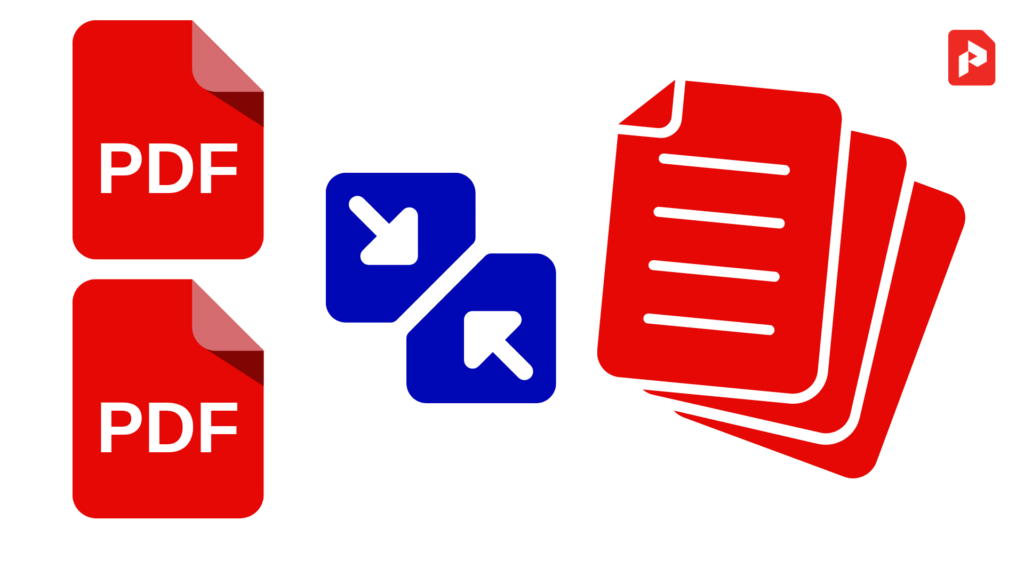
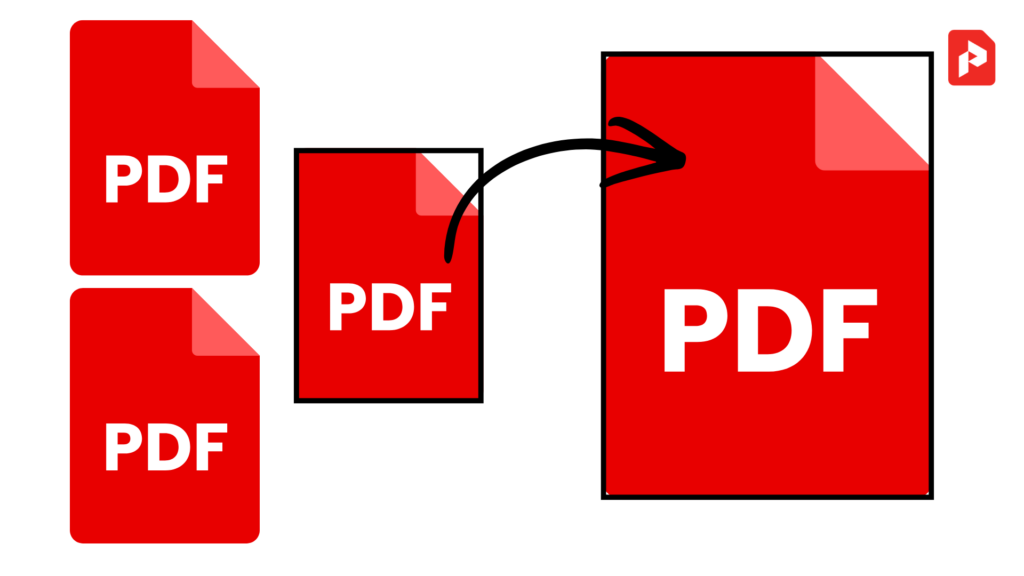
With the Merge PDF tool, you can combine multiple PDFs into a single file. This is useful when you want to consolidate different parts of a report, presentation, or other documents into one cohesive PDF. The process is quick and straightforward—just upload the files, click merge, and you’re done!
b. Split PDF
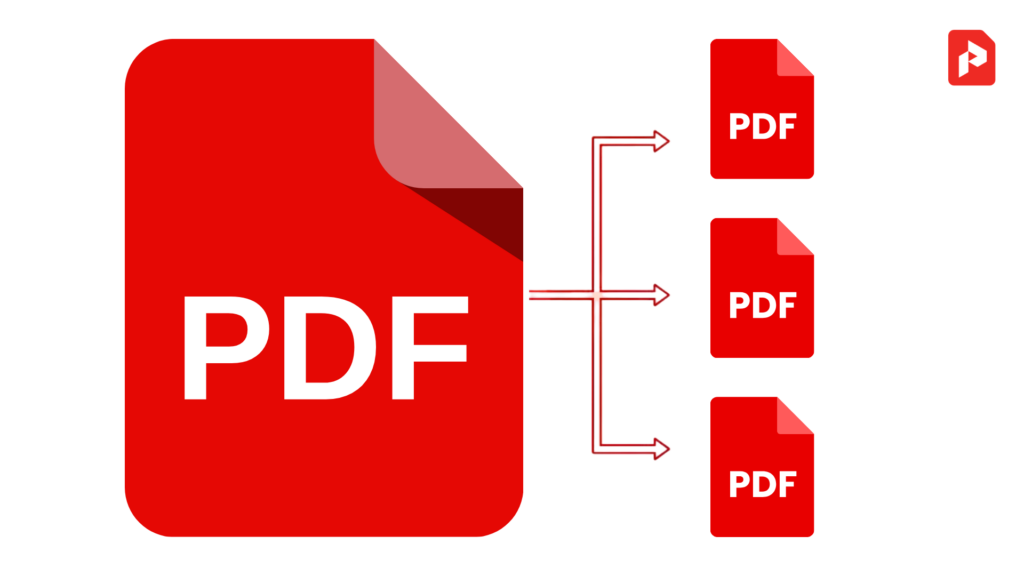
The Split PDF tool allows you to break a large PDF into smaller, more manageable files. Whether you need to extract specific pages or divide your document by size, this tool can make it happen with ease. It’s perfect for working with large reports, eBooks, or presentations that are difficult to handle as a single file.
c. Rotate PDF
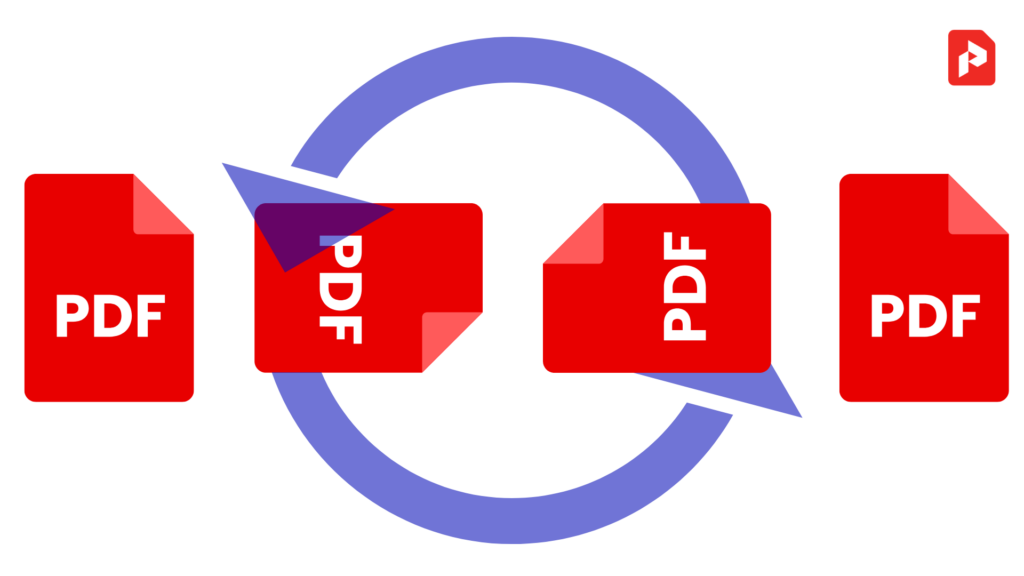
If your PDF document includes pages in the wrong orientation, the Rotate PDF tool lets you rotate them without altering the content. This function is ideal when you need to fix pages that are upside down or sideways in a PDF.
d. Delete PDF Pages
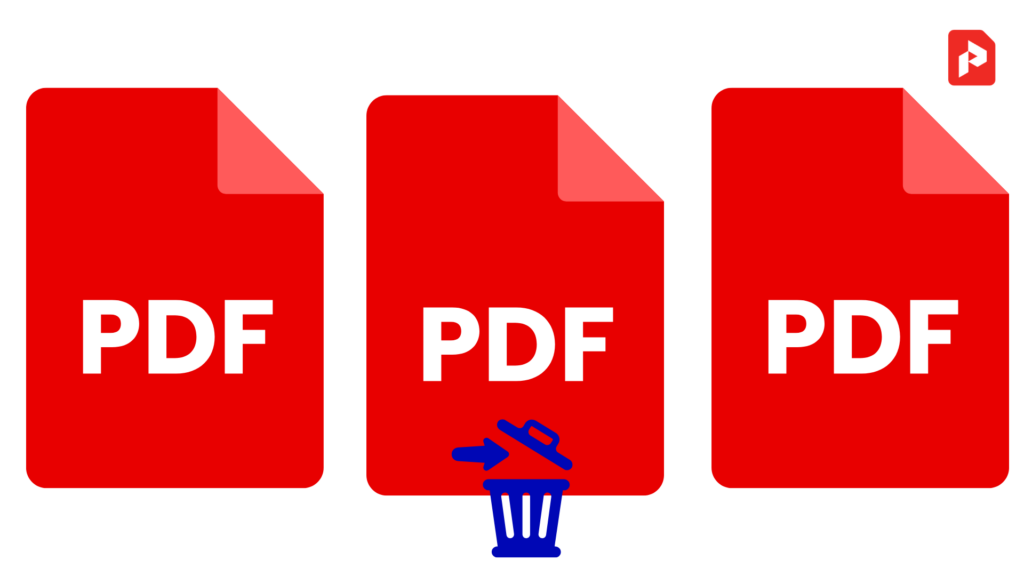
The Delete PDF Pages tool enables you to remove unwanted pages from a document. This is great for deleting blank pages, irrelevant sections, or outdated content. Simply upload the PDF, select the pages to be removed, and download the new, cleaner file.
e. Extract PDF Pages
With the Extract PDF Pages tool, you can choose specific pages from a larger PDF and save them as a separate file. This is ideal when you only need a section of a document, such as a single chapter of an eBook or a specific report from a larger project.
2. Convert From PDF
PDFBoom helps you convert your PDF files into other popular formats, allowing for easy editing or use in other applications.
a. PDF to Word
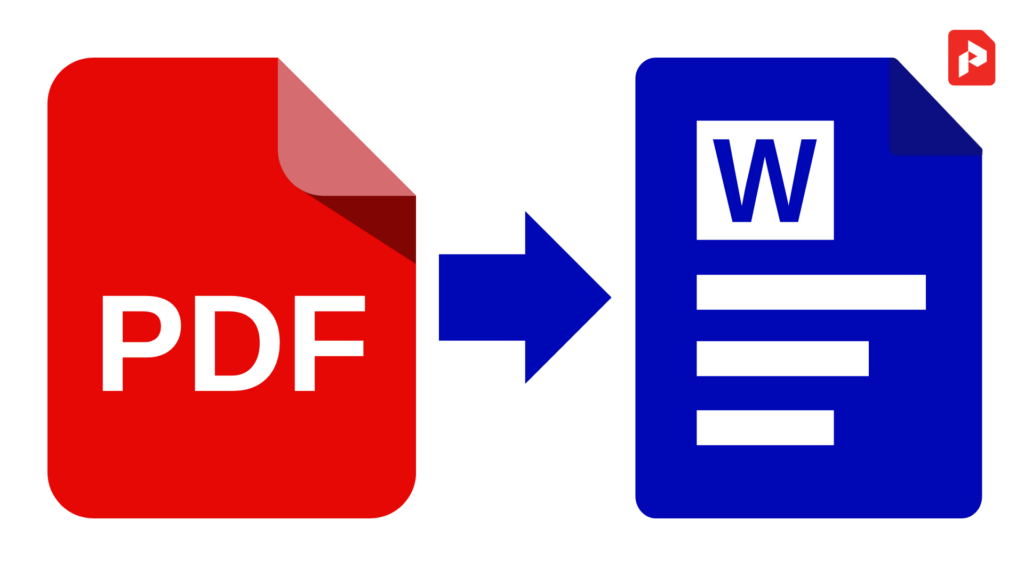
The PDF to Word converter allows you to extract the text and layout from your PDF and save it in a Microsoft Word document format. This is particularly useful for editing text, modifying tables, and making adjustments that are difficult to do in a static PDF.
b. PDF to JPG
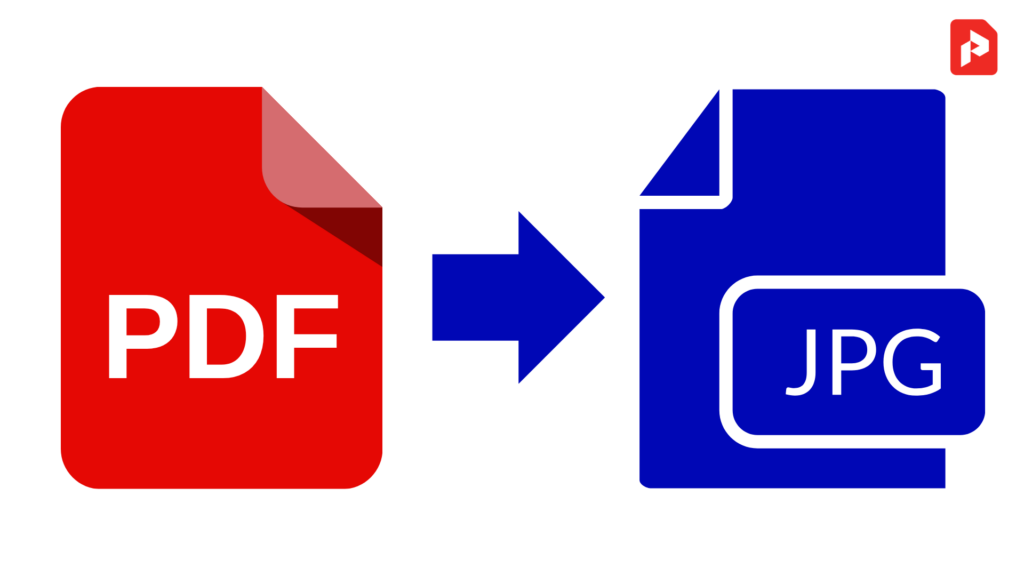
With the PDF to JPG tool, you can convert your PDF pages into image files (JPG). This is great when you need to share or store the content in a more accessible image format, particularly for presentation slides or individual document pages.
c. PDF to Excel
The PDF to Excel tool by PDFBoom allows you to quickly convert PDF documents containing tables into editable Excel spreadsheets. This is ideal for extracting data from reports, invoices, or any document with structured information. Once converted, you can easily manipulate the data, whether it’s for analysis, sorting, or calculation, all in a user-friendly format.
3. Convert to PDF
In addition to converting PDFs into other formats, PDFBoom allows you to convert various other file types into PDF format.
a. Word to PDF
The Word to PDF tool is designed to turn your Microsoft Word documents into PDFs, which is ideal for sharing or printing, as PDF files retain their formatting across all devices and platforms.
b. Excel to PDF
If you have data in an Excel file that you want to present as a PDF, this tool allows for easy conversion. Whether it’s a simple spreadsheet or a complex dataset, the Excel to PDF tool ensures that your layout, fonts, and structure remain intact in the final PDF version.
c. PowerPoint (PPT) to PDF
The PPT to PDF converter enables you to convert PowerPoint presentations into PDF format. This is useful for sharing presentations that don’t require editing or for making them more secure and accessible across devices.
d. Text (TXT) to PDF
You can convert simple text documents (TXT) into PDF files using the Text to PDF tool. This is helpful when you need to preserve a text document’s formatting or when you want to share or print it in a universally accepted file format.
e. Image (WEBP, JPG, PNG, GIF) to PDF
Convert image files like WEBP, JPG, PNG, or GIF into PDFs with this tool. This is particularly useful when you need to compile multiple images into one document for easy sharing or printing.
f. eBook (EPUB) to PDF
For those working with eBooks in EPUB format, the EPUB to PDF converter allows you to convert the file into PDF format. This is helpful when you want to read the eBook on a device that supports only PDF files or if you want to preserve the eBook for offline use.
g. HTML to PDF
The HTML to PDF tool by PDFBoom allows you to convert web pages or HTML files into PDF documents. This is useful for saving web content, articles, or online forms in a standardized format that can be easily shared, printed, or archived. Simply upload the HTML file or provide a URL, and the tool will generate a professional PDF version of the page with the original layout intact.
h. CSV TO PDF
The CSV to PDF tool by PDFBoom converts CSV files into PDF format, making it easier to share and present data. Simply upload your CSV, and the tool will generate a neatly formatted PDF, preserving the data structure for a professional look.
4. PDF Compression
a. Compress PDF
Large PDF files can be cumbersome to email or upload. PDFBoom’s Compress PDF tool reduces the file size of your PDF documents without compromising quality. This makes sharing and storing PDFs much more convenient and efficient.
5. PDF Security Tools
Security is crucial when working with documents that contain sensitive information. PDFBoom offers various tools to enhance the security and privacy of your PDFs.
a. Protect PDF
With the Protect PDF tool, you can add a password or encryption to your PDF files to restrict access. This is especially useful when sharing confidential documents that should not be viewed, printed, or edited by unauthorized users.
b. Unlock PDF
If you have a PDF that is locked with a password and you need to unlock it, PDFBoom offers an Unlock PDF tool. This tool allows you to remove the password protection and access the content of the document freely. Please note that you should only unlock PDFs that you are authorized to access.
6. OCR (Optical Character Recognition)
a. PDF OCR
PDFBoom also offers Optical Character Recognition (OCR) technology, which allows you to extract text from scanned images or image-based PDFs. With this tool, the text in a PDF that was previously an image can be recognized and converted into editable text, making it easier to work with.
FAQs
How do I edit a PDF for free?
You can use online tools like Smallpdf or Sejda, which offer free PDF editing features like text edits and annotations. For more advanced features, consider using a paid version.
Can I edit a scanned PDF?
Yes, using tools like Adobe Acrobat Pro or PDFelement that offer OCR capabilities, you can convert scanned images into editable text.
Is it safe to edit PDFs online?
It’s safe to use reputable platforms like Smallpdf or Sejda for basic PDF edits. However, avoid uploading sensitive documents to untrusted sites.
Can I edit a password-protected PDF?
If you have the password, you can open and edit a password-protected PDF. If not, you will need to use tools that help recover or unlock PDFs (ensure legality in your jurisdiction).